
Is AI Able to Imitate Intimacy? What Feels Real, What Isn’t, and How We Stay Safe
January 30, 2026AI Web Design Generator: What It Makes, What It Misses, and How to Choose One in 2026
January 30, 2026A lot of “bad” AI images aren’t bad prompts. They’re bad settings. The prompt gets all the blame because it’s the only thing most people feel in control of. But three quiet settings often decide whether the output looks clean, costs a fortune, or can be repeated later without drama.
Those three settings are simple: size is the canvas (how many pixels the model must fill), steps are how long the model refines the image before it stops, and seed is the starting random number that shapes the first burst of noise.
Controls vary by tool. Stable Diffusion and Flux usually expose all three. Midjourney exposes seed and aspect ratio, but hides steps. DALL-E 3 and Imagen 3 automate steps, and seed is often not user-facing.
The goal here is practical: help readers pick settings for speed, quality, and repeatable results, without turning every image into a science project.
Image size, pick the right canvas before anything else
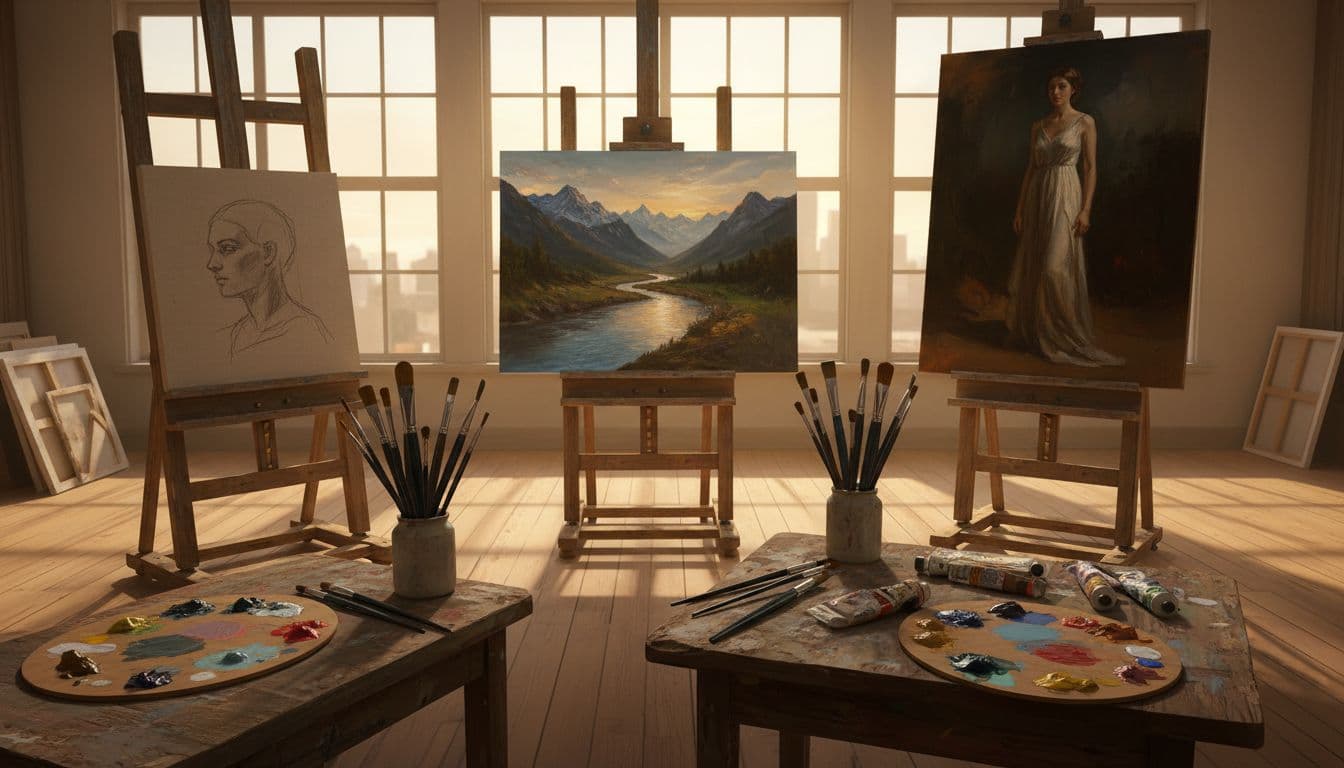
Size is the first decision because it locks in everything else: time, cost, detail, and even composition. Asking for a tiny image is like asking an artist to paint a face on a postage stamp. Asking for a huge image is like asking for a mural, then acting surprised it took longer.
Bigger images can show more detail, but they also ask the model to solve more problems at once. That’s why higher resolution can raise the odds of odd textures, extra fingers, or “busy” backgrounds. The model has more room to make mistakes.
Size also changes composition. A square crop forces a centered subject. A wide frame invites horizons and groups. A tall frame pushes the eye up and down (great for posters, awkward for a dining table scene).
A simple way to think about it: pixels are budget. Spend them where they matter. If the subject is a product label, size matters a lot. If the goal is a mood board, less size can be smarter.
Here’s a quick rule set that stays sane in January 2026 across most popular tools:
| Use case | Good starting size | Why it works |
|---|---|---|
| General concept art, icons, social posts | 1024×1024 | Clear detail without slow runs |
| Portraits for slides, posters, covers | 1024×1536 (portrait) | Better framing for people |
| Wide scenes, headers, slide covers | 1536×1024 (landscape) | Better space for settings |
| DALL-E 3 wide scenes | 1792×1024 | Matches its common wide option |
| Print-first work (only when needed) | up to 2048×2048 | More detail before upscaling |
One more thing that trips people up: if the model “struggles,” larger sizes don’t always look more real. They can look more wrong, just in higher definition.
Best default sizes for most work, and when to change them
For most pros who need clean visuals fast (policy decks, reports, internal docs, web graphics), 1024×1024 is a strong default. Many tools already center their quality around it, including many open models and hosted apps.
When should size change?
If the subject needs breathing room, the aspect ratio should change first, not just the pixel count. A wide image gives a meeting room scene space for a table, flags, and faces without cramming. A tall image gives a full-body person room without chopping feet.
DALL-E 3 makes this easy because it offers a small set of sizes that behave well: 1024×1024, 1024×1792, and 1792×1024. If the idea is “city skyline at dusk,” wide is a better fit than square, even if the prompt is perfect.
For print, people often jump straight to huge sizes. That’s how they end up paying more while getting stranger details. A safer move is to generate at a sane size, then upscale (more on that next). Going up to 2048×2048 makes sense when tiny details matter, like close-up product shots or poster art that will be inspected up close.
This is also where workflows get real. Anyone planning to sell posters or merch should treat size as a production choice, not a vibe. Consistent sizes keep batches clean, which matters if they want to build a side hustle selling AI art using Midjourney and DALL‑E and avoid redoing exports all week.
How to get high detail without brute forcing huge images
High detail doesn’t require brute force. A common, steady path is: generate smaller, pick the winner, then upscale.
Why it works: generation is where the model decides composition. Upscaling is where it adds pixels. Separating those jobs reduces risk.
A short workflow that many teams use:
Draft at 1024. Pick the best image. Upscale to 2048. Then fix small issues with edits (inpainting if the tool has it).
That last step matters. Upscaling can make hands look sharper, but still wrong. It can make text look clearer, but still unreadable. Edits are where the “last 10 percent” gets done.
Built-in upscalers are often enough for slides, reports, and web use. External upscalers can help for print, but the same rule applies: don’t ask the model to invent a perfect billboard in one shot.
Also, if the image includes text, a quiet truth saves hours: many generators still struggle with spelling. The best fix is often to remove text from the generation, then add real text later in a design tool.
Sampling steps, how much polish the model gets before it stops
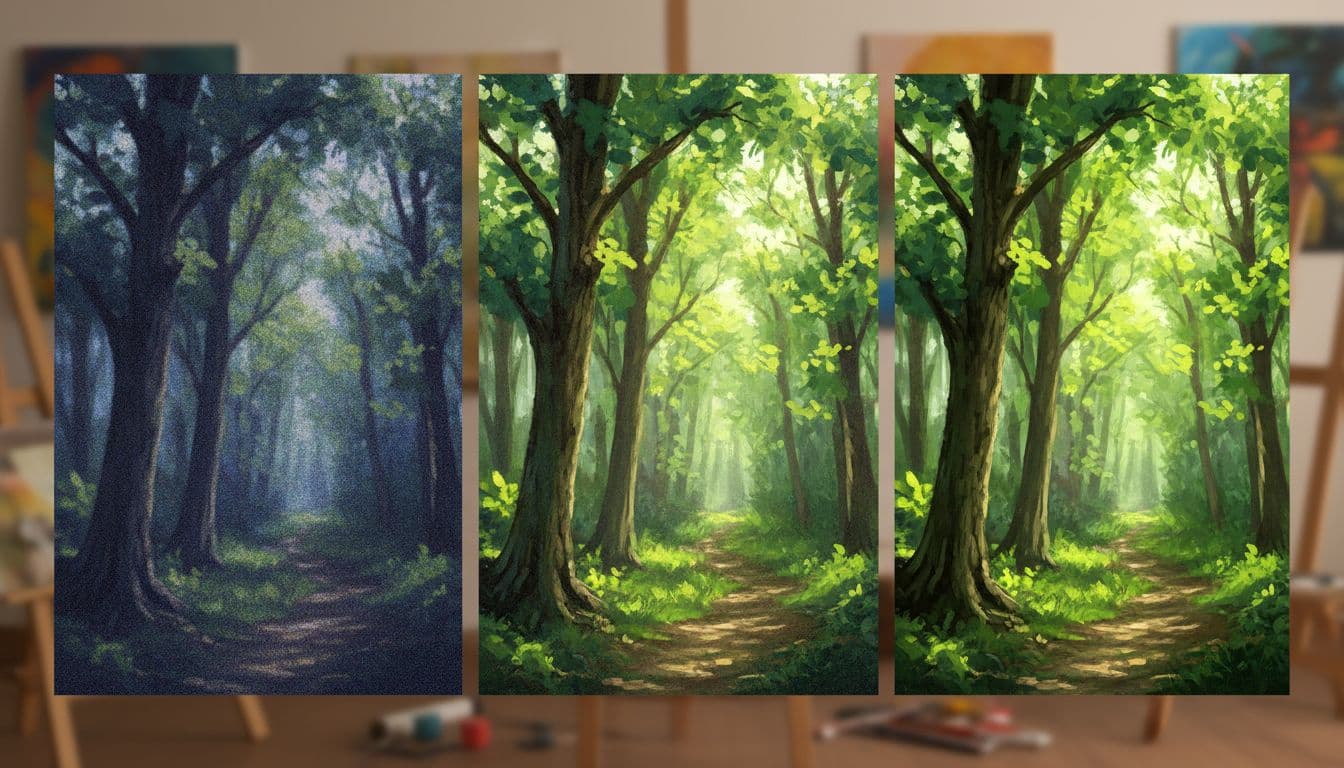
Steps are refinement passes. The model starts with noise, then keeps “correcting” toward the prompt. Each step is another round of that correction.
More steps often reduce noise and tighten edges. That sounds great, until it stops helping. After a point, extra steps give smaller gains, while time and cost keep rising. And if the settings are pushed too far, the image can get “overcooked,” with waxy skin, crunchy textures, or weird sharpness in the wrong places.
Not every tool shows steps. Stable Diffusion setups often do. Flux tools often do. Midjourney doesn’t expose steps as a number, and DALL-E 3 and Imagen 3 mostly decide internally.
That doesn’t make steps less important. It just means some tools make the choice for the user. When a tool hides steps, the practical move is to control what’s still visible: size, aspect ratio, prompt clarity, and seed (if available).
Steps are also not a moral test. More isn’t “better,” it’s just more. Like simmering a sauce, there’s a window where flavor builds, then a window where it burns.
Step ranges that work in practice (fast tests vs final images)
For Stable Diffusion style pipelines, many users land in these ranges:
- About 20 steps for fast exploration. It’s quick, and it shows if the idea works.
- 30 to 50 steps for cleaner finals. This often tightens edges and improves small shapes.
- Above that can help in some cases, but it often hits the “diminishing returns” wall.
Flux tools vary by version and setup, but a good starting point many users report is around 25 steps when speed matters. It’s often enough to judge composition and lighting without waiting.
The best habit is simple: test two to three step values with the same prompt and seed. Otherwise, the brain lies. It sees two different images and credits steps, when the change was just random noise.
A quick testing pattern looks like this: lock the seed, run 20 steps, run 35 steps, run 50 steps. Then compare edges, skin texture, and small objects (buttons, jewelry, fingers). If the jump from 35 to 50 is tiny, that’s the tool telling the user to stop spending steps.
Steps do not fix a weak prompt, and how to spot wasted steps
Steps can’t rescue a broken plan. If the prompt is unclear, more steps just makes a clearer mistake.
Wasted steps show up in a few easy-to-spot ways:
- The composition is still wrong (subject cropped, wrong angle, cluttered frame).
- Faces are still off (odd eyes, uneven features, “mask” skin).
- Text stays unreadable.
- The model ignores the subject and invents a new one.
When those happen, the fix usually isn’t “add 20 steps.” It’s one of these:
Rewrite the prompt so the subject is plain and direct. If the tool supports it, add a short negative prompt to block common issues. Change the size or aspect ratio so the frame matches the idea. Or switch models when the current one just isn’t good at that type of image (hands, crowds, dense text).
Steps are for polish, not for steering. Steering comes from composition choices and clear language.
Seed, the setting that makes results repeatable (or totally random)
Seed is the starting random number that generates the first noise pattern. That noise is not “junk,” it’s the skeleton the image grows on. Same prompt plus same seed often produces a very similar result, which is why seed is the backbone of repeatable work.
This is where platforms differ. Many open tools expose seed in plain sight. Midjourney uses --seed. Some tools, like DALL-E 3, may not offer a user seed at all (at least not in a way users can count on). Imagen 3 often leans the same way, with more automation and fewer knobs.
If a tool hides seed, users can still act like a seed exists by saving the best output and using image-to-image or “variations” features, when available. It’s not as clean as a number, but the intent is the same: keep the starting point stable while changing one thing at a time.
Seed is also the difference between “make it again” and “make something like that, but not that.” In policy work, training decks, or brand sets, that difference matters.
When to lock a seed, and when to randomize it
Lock a seed when consistency pays the bills.
That includes character consistency (a spokesperson, a mascot, a patient avatar), brand style (the same lighting and look across a series), icon sets, and slide decks that need one visual language. It also helps when a team needs review loops. Stakeholders often say “keep it, just fix X.” A locked seed makes that possible.
Randomize seed when the goal is discovery.
Mood boards, early brainstorming, and “show me 20 options” work better with fresh seeds. Randomness helps the model try new layouts and surprises. That’s the fun part, and it’s also the useful part.
A practice that keeps both sides happy: generate 10 to 20 images with random seeds, then lock the best seed and start refining. It’s like casting actors, then rehearsing with the one who fits the role.
A simple repeatable workflow for consistent characters and series images
Consistency comes from treating image generation like a lab notebook. Not fancy, just honest records.
A simple process that works across many tools:
- Pick the size and aspect ratio first, and keep them fixed.
- Choose a base prompt that names the subject in plain words.
- Generate multiple seeds (or multiple variations) to explore options.
- Pick one seed that matches the goal, then lock it.
- Increase steps a bit for the final render (when the tool allows it).
- Keep the seed fixed while changing only one thing at a time (lighting, background, outfit, camera angle).
The last step is where most people slip. They change prompt, size, model, and steps all at once, then wonder what caused the improvement. One change at a time teaches faster, and it makes repeat work easier.
Teams should also store the four basics in a notes doc: prompt, seed, size, and steps. It’s not glamorous. It saves hours. It also helps with audit trails and handoffs, which matters in policy shops where people rotate roles.
Conclusion
Better AI images often come from calmer settings, not longer prompts. A safe starting point for many tools is 1024×1024, because it balances detail and speed. Steps should stay moderate, around 20 to 30 for drafts, and 30 to 50 for finals when the tool exposes that control. Seed should be locked any time consistency matters, like characters, icon sets, or a slide series that has to match week after week.
The fastest way to learn is also the least exciting: change one setting at a time, then compare. That’s how patterns show up.
The next time a result looks “off,” the prompt doesn’t need to take all the blame. Test the cheat sheet on a real prompt, save the best settings, and reuse them like a trusted recipe.
